You can Contact us on +918879925800
- Apple MacBooks
- Laptops – PreOwned
- Desktops & Tiny PC’s – PreOwned
- Workstations & Servers
- Memory (RAM) For Laptops/Desktops
- SSD & Harddisk Drives (Storage)
- Graphics Card
- Motherboards for HP / DELL / Lenovo
- Motherboard for Desktop – Intel Chipset
- Power Supply (SMPS) for HP/Dell/Lenovo
- Power Adapters for Laptops/ Mini PC
- Processors (CPU)
- LCD-LED Monitors (Display)
- Accessories
Tips to Increase the Laptop Speed
A slow laptop can affect your productivity, whether you’re working, studying, attending online meetings, or browsing the internet. Fortunately, you do not always need to replace your laptop. In numerous situations, just a few straightforward adjustments can improve performance.
In this guide, you’ll discover five practical ways to speed up your laptop. You’ll also learn how to keep it running smoothly.
1. Disable Unnecessary Startup Programs
Many applications automatically launch when you start your laptop. Consequently, Windows takes more time to start up.
It also uses valuable system resources before you begin working.
To improve startup speed:
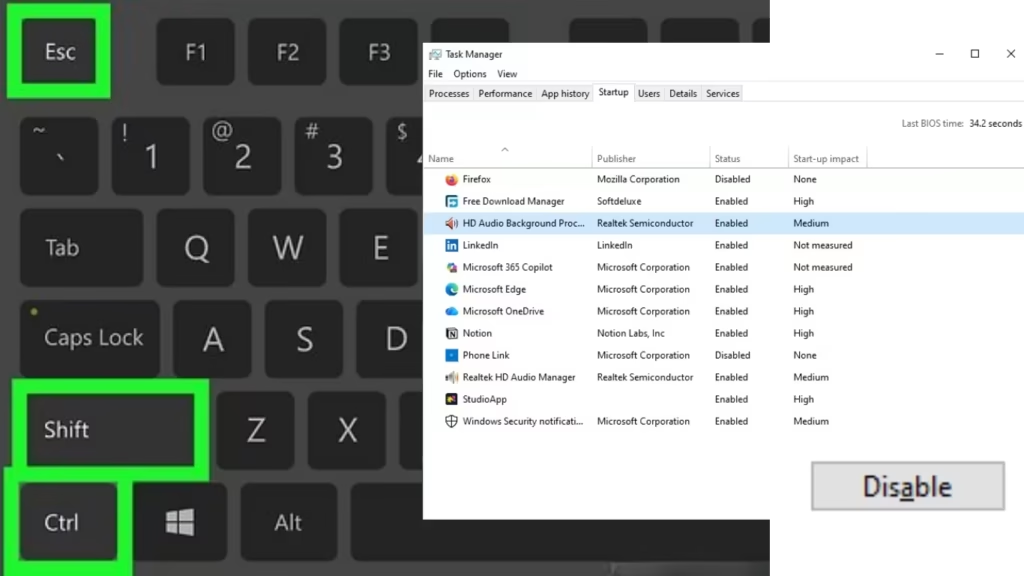
- Press Ctrl + Shift + Esc to open Task Manager.
- Click the Startup Apps tab.
- Turn off programs you don’t need when your laptop starts.
Moreover, reducing startup applications allows your laptop to become responsive much faster after booting.
2. Quick Performance Tips
To make your laptop faster, try these simple maintenance tips:
🗑️ Delete Temporary Files
Temporary files use extra storage and can slow your system over time.
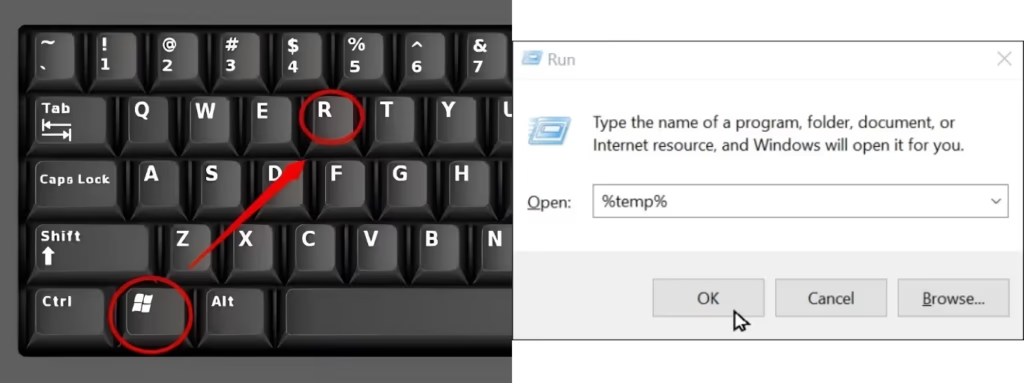
Shortcut:
- Press Windows + R
- Type %temp%
- Press Enter
- Select all files (Ctrl + A) and delete them.
Repeat the same steps with:
- temp
- prefetch (administrator permission may be required)
3. Free Up Storage Space
When your storage drive is almost full, your laptop has less space to manage temporary files and system tasks. Therefore, keeping enough free space is essential for better performance.
You can free up storage by:
- Deleting temporary files.
- Removing duplicate files.
- Uninstalling unused software.
- Emptying the Recycle Bin.
- Moving large files to an external drive or cloud storage.
In addition, try to keep at least 20% of your storage free for smoother performance.
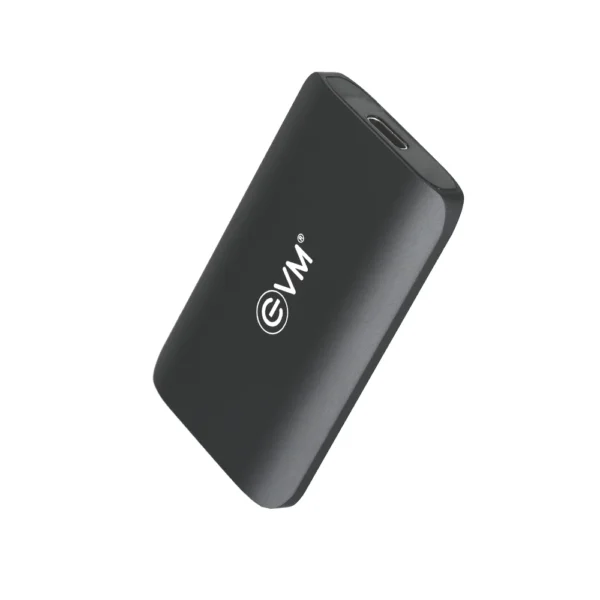
4. Upgrade from an HDD to an SSD
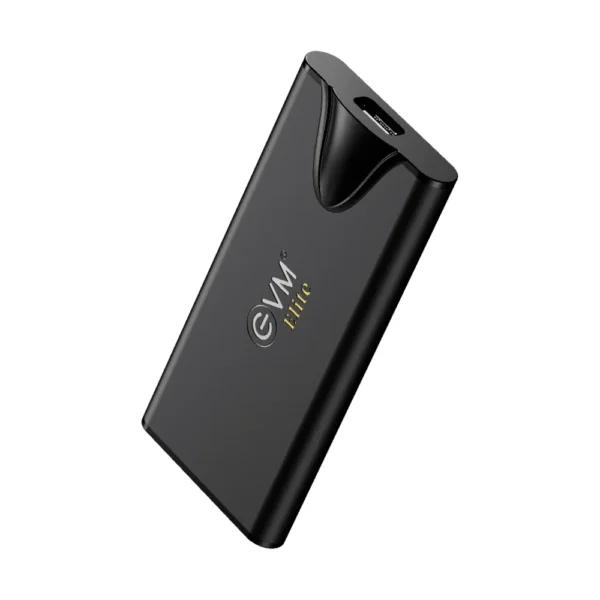
If your laptop still uses a Hard Disk Drive (HDD), upgrading to a Solid State Drive (SSD) is a great way to boost speed.
An SSD helps your laptop:
- Boot Windows much faster.
- Open applications in seconds.
- Transfer files quickly.
- Improve overall system responsiveness.
As a result, even an older laptop can feel significantly faster after an SSD upgrade.
Dont miss this weeks sales
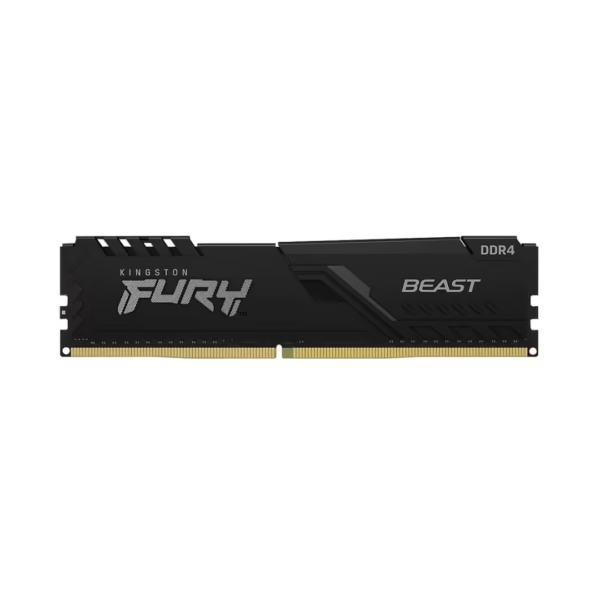
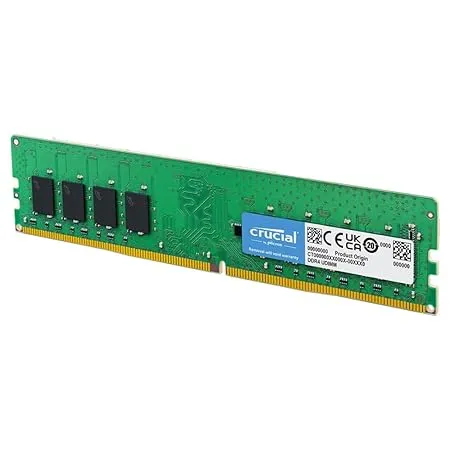
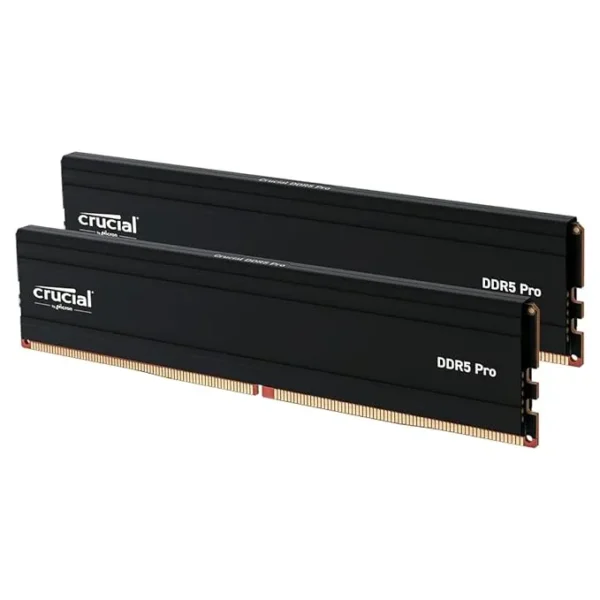
4. Increase Your Laptop’s RAM
Running multiple applications with limited RAM often causes slow performance, freezing, and lag. Fortunately, upgrading your RAM is a cost-effective way to improve multitasking.
Here are some general recommendations:
| Usage | Recommended RAM |
|---|---|
| Basic browsing & Office work | 8GB |
| Professional work & Multitasking | 16GB |
| Video Editing & Heavy Software | 16GB–32GB |
Furthermore, additional RAM allows your laptop to run browsers, office applications, and creative software more efficiently.
Dont miss this weeks sales
5. Keep Windows Updated and Remove Malware
Keeping your operating system up to date improves performance and security. At the same time, malware and unwanted software can consume CPU, RAM, and storage resources in the background.
For the best performance:
- Install Windows updates regularly.
- Update your laptop drivers.
- Run Windows Security or Microsoft Defender.
- Remove suspicious applications.
Consequently, your laptop remains secure while maintaining better overall performance.
Dont miss this weeks sales
Windows 10 Pro – Genuine Lifetime License (MAR Certified)
Genuine Microsoft Windows 11 Pro License
🧹 Use Disk Cleanup
Windows includes a built-in tool to remove unnecessary files safely.
Steps:
- Search for Disk Cleanup in the Start menu.
- Select your Windows drive (usually C:).
- Tick the files you want to remove.
- Click OK.
This can free up several gigabytes of storage.
🌐 Clear Your Browser Cache
A large browser cache can sometimes affect browsing performance.
For Chrome:
- Press Ctrl + Shift + Delete
- Choose Cached images and files
- Click Clear data
You don’t need to do this every day—once every few weeks is usually enough.
🔄 Restart Instead of Shutting the Lid
Many users simply close the laptop lid after work. However, restarting your laptop every few days clears memory and closes background processes, helping Windows run more efficiently.
💾 Empty the Recycle Bin
Deleted files still use storage until you empty the Recycle Bin.
Therefore, make it a habit to empty it regularly to recover valuable disk space.
💡 Pro Tip
For the biggest improvement in laptop performance:
- Upgrade to an SSD.
- Add more RAM.
- Clean temporary files every month.
- Keep Windows updated.
- Restart your laptop regularly.
Why Choose Vision IT?
- Genuine and thoroughly tested RAM modules.
- DDR3, DDR4, and DDR5 options available.
- Multiple capacities, including 4GB, 8GB, 16GB, and higher.
- Warranty on selected RAM models.
- Expert assistance in choosing compatible RAM for your laptop.
Instead of replacing your laptop, consider upgrading its RAM to enjoy faster performance at a much lower cost.
Frequently Asked Questions
How can I increase my laptop speed without buying a new one?
- You can make your laptop faster by turning off startup programs.
- Free up storage space by removing files you do not need.
- Upgrade to an SSD for quicker loading and better performance.
- Add more RAM to help with multitasking.
- Keep Windows updated to fix bugs and improve speed.
Does upgrading RAM make a laptop faster?
Yes. More RAM improves multitasking and allows your laptop to run multiple applications smoothly with less lag.
Is SSD better than HDD?
Yes. An SSD offers much faster boot times, quicker file transfers, and better overall performance than a traditional HDD.
How much RAM do I need?
For everyday use, 8 GB of RAM is a good choice. If you use professional software or multitask frequently, 16GB RAM provides a better experience.
Should I upgrade my laptop or buy a new one?
If your laptop still meets your needs and supports upgrades, adding an SSD or more RAM often costs less. Buying a new laptop is usually more expensive.
Conclusion
Improving your laptop’s speed does not must be expensive. Disable unnecessary startup programs to boost speed.
Clean your storage to free up space. Upgrade to an SSD for faster load times. Increase your RAM to improve multitasking. Keep Windows updated for better performance.
If you plan to upgrade your laptop, choose the right RAM or SSD. These upgrades can extend its lifespan. They can also make your computer feel much smoother.
At Vision IT, you can find reliable upgrade parts at affordable prices. These parts can help your laptop feel like new again.
Recent Posts
- How to Increase the Speed of Your Laptop?
- How to Speed Up Old Laptop: 15 Proven Ways That Actually Work
- How to Build a PC: A Complete Step-by-Step Guide for Beginners
- Lenovo ThinkPad vs Dell Latitude: Which Series Is Best in 2026?
- Intel i7 vs i9 vs Apple M Series: Which Processor Is Best for Your Laptop?
Recent Comments