

Seeing the “Your Windows License Will Expire Soon” message on your Windows computer can be confusing, especially if you have already activated Windows. This warning may appear on Windows 10 or Windows 11 when the system detects an activation issue or a time-limited licensing arrangement.
It commonly occurs on computers using an organisation’s volume license, but other licensing problems can also cause activation warnings. Understanding the reason behind the message helps you choose the correct solution. In this guide, learn why the warning appears, how to check your Windows activation status, and how to resolve the issue using legitimate methods.
What Does “Your Windows License Will Expire Soon” Mean?
The message indicates that Windows believes its current activation may expire or needs attention. The exact reason depends on the license type installed on your computer.
Most standard Windows OEM and retail licenses do not expire simply because time passes. However, organisation-managed volume activation may require periodic renewal through the company’s activation infrastructure.
If you purchased a computer with Windows already installed, the warning could indicate an activation problem, an incorrectly configured volume license, or a license that needs verification.
Important: Do not purchase another Windows license immediately. First, check your activation status and identify the cause of the warning.
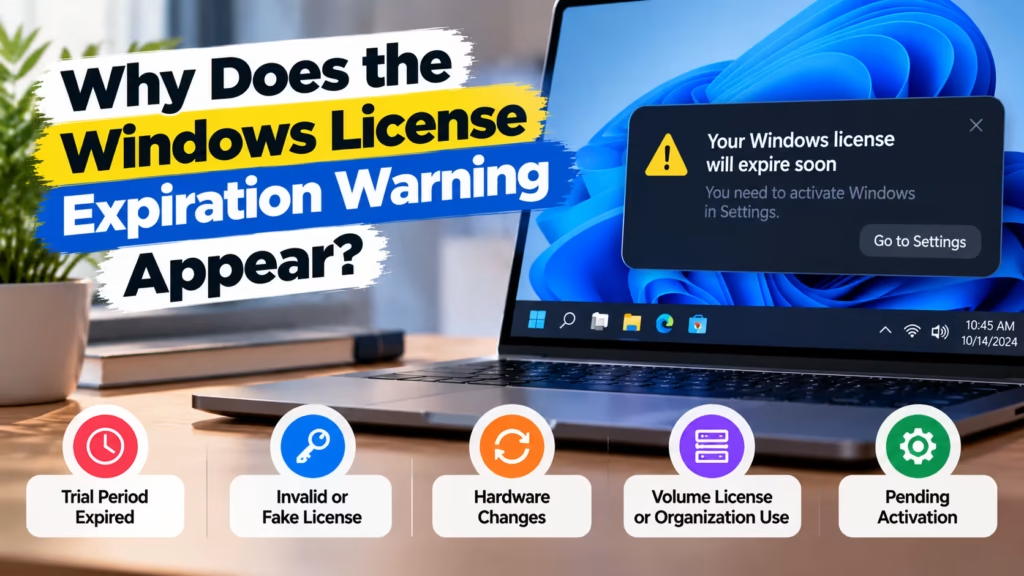
Why Does the Windows License Expiration Warning Appear?
Several issues can trigger this message. Understanding the cause helps you avoid unnecessary purchases or incorrect troubleshooting.
1. Windows Is Using a Volume License
One common cause is a Windows installation configured for Key Management Service (KMS) activation. Organisations use volume licensing to activate and manage Windows on multiple computers.
KMS clients must periodically contact their organisation’s activation server to renew activation. If a company laptop cannot reach that server, the warning may appear.
Solution: If your computer belongs to your employer, connect to the company network or approved VPN and contact your IT administrator.
2. Windows Was Installed with the Wrong License
A computer may have Windows Pro installed even though its valid digital license applies to Windows Home, or the reverse. The mismatch can prevent successful activation.
This can happen after reinstalling Windows, repairing a computer, or changing its operating system edition.
Solution: Check your installed Windows edition and compare it with the edition covered by your license. Install or activate the correct edition if necessary.
3. The Windows Product Key Is Invalid
A product key may fail activation if it is invalid, blocked, used beyond its permitted terms, or unsuitable for the installed Windows edition.
This issue can occur when Windows was installed using an unverified key or a license that was not properly transferred.
Solution: Use a valid license intended for your Windows edition. If you purchased the computer or license recently, contact the seller for assistance.
4. Major Hardware Changes Were Made
Replacing the motherboard or making other significant hardware changes can affect activation because a digital license may be associated with the device’s hardware configuration.
Solution: Open Windows Activation settings and run the Activation troubleshooter if available. If your digital license is linked to your Microsoft account, sign in with that account and follow the reactivation instructions.
5. Windows Activation Has Not Completed Successfully
Windows may remain unactivated because of connectivity problems, an activation error, or a mismatch between the installed edition and the available license.
Solution: Check your internet connection, restart your computer, and review the activation status in Settings. If the problem continues, use Microsoft’s activation troubleshooting guidance.
How to Check Your Windows License Status
Before applying a fix, identify your Windows edition and current activation status.
Method 1: Check Activation in Windows 11
-
Open the Start menu.
-
Select Settings.
-
Go to System → Activation.
-
Review the activation status and any displayed error message.
Windows may show that it is activated, activated with a digital license, or not activated.
Method 2: Check Activation in Windows 10
-
Open the Start menu.
-
Select Settings.
-
Open Update & Security → Activation.
-
Review the activation status and any error code.
The displayed status can help determine whether Windows is activated or requires further action.
Method 3: Check the License Details Using Command Prompt
You can use Windows’ built-in licensing utility to inspect your license information.
-
Search for Command Prompt in the Start menu.
-
Open it using an account with appropriate permissions.
-
Enter the following command:
slmgr /dlv -
Press Enter and review the Windows Script Host window.
This command displays detailed licensing information. Look for the license description and activation details to help identify the activation channel.
You can also run:
slmgr /xpr
This command displays the activation expiration information reported by Windows. Its result can help distinguish a time-limited activation from an activation that does not have a scheduled expiration.
These commands are diagnostic tools. They do not provide a license or fix an activation problem by themselves.
How to Fix “Your Windows License Will Expire Soon”
Once you understand the cause, follow the appropriate solution.
Fix 1: Restart Your Computer and Check the Internet
A temporary system or connectivity issue can interfere with activation checks.
-
Save your work and restart your computer.
-
Connect to a stable internet connection.
-
Open Activation settings again.
-
Check whether the warning remains.
If the message continues, move to the next step rather than repeatedly restarting your device.
Fix 2: Run the Windows Activation Troubleshooter
The built-in troubleshooter can help identify certain activation problems.
For Windows 11:
-
Open Settings → System → Activation.
-
Look for the Troubleshoot option if Windows is not activated.
-
Follow the on-screen instructions.
For Windows 10:
-
Open Settings → Update & Security → Activation.
-
Select Troubleshoot if the option is available.
-
Follow the instructions to resolve the activation issue.
The troubleshooter may not appear when Windows is already activated or for every type of activation problem.
Fix 3: Enter a Valid Windows Product Key
If your license requires a product key, confirm that it matches your Windows edition.
-
Open the Activation page in Settings.
-
Select the option to change or enter a product key.
-
Enter your valid 25-character product key.
-
Follow the activation instructions.
Do not use random product keys found online. A key that activates temporarily or belongs to another licensing arrangement may not provide a valid, lasting license for your device.
Fix 4: Connect to Your Organisation’s Network
If your computer uses an organisation-managed KMS license, activation may require access to the company’s activation server.
-
Connect to your workplace network or approved VPN.
-
Restart the computer if instructed by your IT team.
-
Contact your system administrator if activation does not renew.
A personal computer should not be configured to rely on an organisation’s activation server unless it is legitimately covered by that organisation’s licensing arrangement.
Fix 5: Resolve a Windows Edition Mismatch
Your digital license must correspond to the Windows edition installed on the computer.
For example, a license for Windows Home does not automatically activate Windows Pro.
Check your edition under Settings → System → Activation or the relevant Windows edition information page. If the installed edition does not match your license, follow Microsoft’s instructions to install or activate the correct edition.
Back up important files before reinstalling Windows.
Fix 6: Contact the Seller or Microsoft Support
If you purchased a computer with Windows included, contact the seller if the license does not activate correctly.
Ask the seller to verify the license supplied with the computer and provide any necessary purchase or license documentation.
If you bought a Windows license separately, keep your purchase receipt and product key details available. Microsoft Support can help investigate activation errors that remain unresolved.
How to Prevent Windows License Expiration Warnings
These practices can help reduce activation problems in the future.
-
Buy genuine Windows licenses: Purchase from a reliable seller and keep the invoice or license documentation.
-
Check the Windows edition: Make sure the installed edition matches your license.
-
Avoid unauthorised activation tools: Unofficial activators and suspicious product keys can create licensing and security risks.
-
Keep license records: Store purchase details and product key information securely.
-
Contact IT for company computers: Follow your organisation’s activation and network requirements.
-
Check before reinstalling Windows: Confirm the correct edition and activation method before reinstalling the operating system.
If you buy a refurbished laptop or desktop, ask whether a genuine Windows license is included or needs to be purchased separately. Refurbished hardware does not automatically include a valid Windows license.
Is It Safe to Ignore the Windows License Warning?
Ignoring the message is not recommended because Windows may eventually become unactivated if the underlying issue remains unresolved.
The impact depends on the license type and activation state. Some Windows features may become restricted, and activation reminders may continue to appear. The warning does not automatically mean that your computer has a virus or that your hardware is failing.
Check your activation status and resolve the licensing issue using legitimate methods. If your computer belongs to an organisation, consult its IT administrator before making licensing changes.
We Also Sell
Vision IT Peripherals offers refurbished computers and IT hardware for home, office, and business requirements.
Note: Confirm the Windows edition, license type, and device eligibility before purchasing a license. A license must be suitable for your intended installation and use.
Frequently Asked Questions
1. Why does my computer say “Your Windows License Will Expire Soon”?
This warning commonly appears when Windows uses an organisation-managed volume license that needs renewal. It can also indicate an activation or licensing issue.
2. How do I stop the Windows license expiration message?
Check your activation status, identify your license type, and use the appropriate fix. You may need to run the troubleshooter, enter a valid product key, or contact your IT administrator.
3. Does a genuine Windows license expire?
Standard OEM and retail Windows licenses generally do not expire simply with time. Some organisation-managed or subscription-based licensing arrangements have different activation requirements.
4. Can I fix the Windows license warning without buying a new key?
Yes, if you already have a valid license. Troubleshooting activation, correcting an edition mismatch, or reconnecting to your organisation’s activation server may resolve the issue.
5. Will the warning damage my computer?
No. The warning itself does not damage your hardware. However, you should resolve the activation issue rather than ignore it indefinitely.
6. Can I use a refurbished laptop without a Windows license?
You can use the hardware, but a valid Windows license is required to activate Windows properly. Check whether the seller includes a suitable license or whether you need to purchase one separately.
Final Thoughts
The “Your Windows License Will Expire Soon” warning usually indicates that Windows needs attention regarding activation or licensing. The right solution depends on whether your computer uses a personal retail or OEM license, a digital license, or an organisation-managed volume license.
Start by checking Activation settings and reviewing the license details. Then use the appropriate troubleshooting method instead of relying on unofficial activation tools. If you recently purchased a computer or Windows license, contact the seller if activation does not work.
Using a valid Windows license and the correct Windows edition helps maintain a properly activated system and reduces recurring activation problems.
