

Windows 11 offers modern features, but not every older laptop supports it officially. Before upgrading, check the Windows 11 system requirements, including the processor, RAM, storage, TPM 2.0, Secure Boot, and graphics compatibility. These checks are important for students, professionals, home users, and businesses using older laptops.
Even if your laptop has sufficient RAM and storage, it may fail compatibility checks because of an unsupported processor or missing security features. Checking your laptop before upgrading helps avoid unnecessary expenses and installation issues. It also helps you decide whether to upgrade your existing device or choose a compatible laptop.
Windows 11 System Requirements You Need to Know
Microsoft sets specific hardware requirements for Windows 11. Your laptop must meet these requirements for official support.
| Requirement | Minimum Requirement |
| Processor | 1 GHz or faster with 2 or more cores on a compatible 64-bit processor |
| RAM | 4 GB or more |
| Storage | 64 GB or larger |
| System Firmware | UEFI, Secure Boot capable |
| TPM | TPM 2.0 |
| Graphics | DirectX 12 compatible with WDDM 2.0 driver |
| Display | 720p display larger than 9 inches |
| Internet | Required for some setup and update features |
Meeting the RAM and storage requirements alone does not guarantee compatibility. The processor and security features also play an important role.
Why Your Old Laptop May Not Qualify
Older laptops often have enough memory and storage for everyday tasks. However, they may still fail the Windows 11 compatibility check.
The most common reason is an unsupported processor. Microsoft maintains a list of supported processors for Windows 11. As a result, a laptop with an older Intel or AMD processor may not qualify even if its specifications look good on paper.
TPM 2.0 can also become a problem. Many newer business laptops include TPM, but older systems may use an earlier TPM version or may not have the feature enabled.
Secure Boot is another important requirement. If your laptop uses older BIOS settings instead of modern UEFI firmware, you may need to check whether it supports the required security features.
How to Check If Your Laptop Supports Windows 11
You do not need to guess whether your laptop qualifies. Start by checking its basic hardware.
First, open Settings > System > About and check the processor and installed RAM. You can also check the Windows version and system type from this section.
Next, check your storage capacity. Windows 11 requires at least 64 GB of storage, although having more free space is strongly recommended for updates and everyday use.
Then, check TPM. Press Windows + R, type tpm.msc, and press Enter. If your system has TPM 2.0, Windows should display the TPM version.
You should also check Secure Boot through System Information. Search for msinfo32 from the Start menu and look for the Secure Boot State.
Microsoft also provides compatibility tools that can help users determine whether a computer meets the basic requirements.
TPM 2.0: Why Does It Matter?
TPM stands for Trusted Platform Module. It is a security feature designed to protect important information stored on your computer.
Windows 11 uses TPM 2.0 as part of its security requirements. The technology can help protect encryption keys, credentials, and other security-related information.
However, TPM can sometimes be present but disabled in the firmware settings. Therefore, an initial compatibility failure does not always mean that your laptop lacks TPM completely.
Before changing firmware settings, check your laptop manufacturer’s documentation. Incorrect BIOS or UEFI changes can affect how the system starts.
Does Your Processor Support Windows 11?
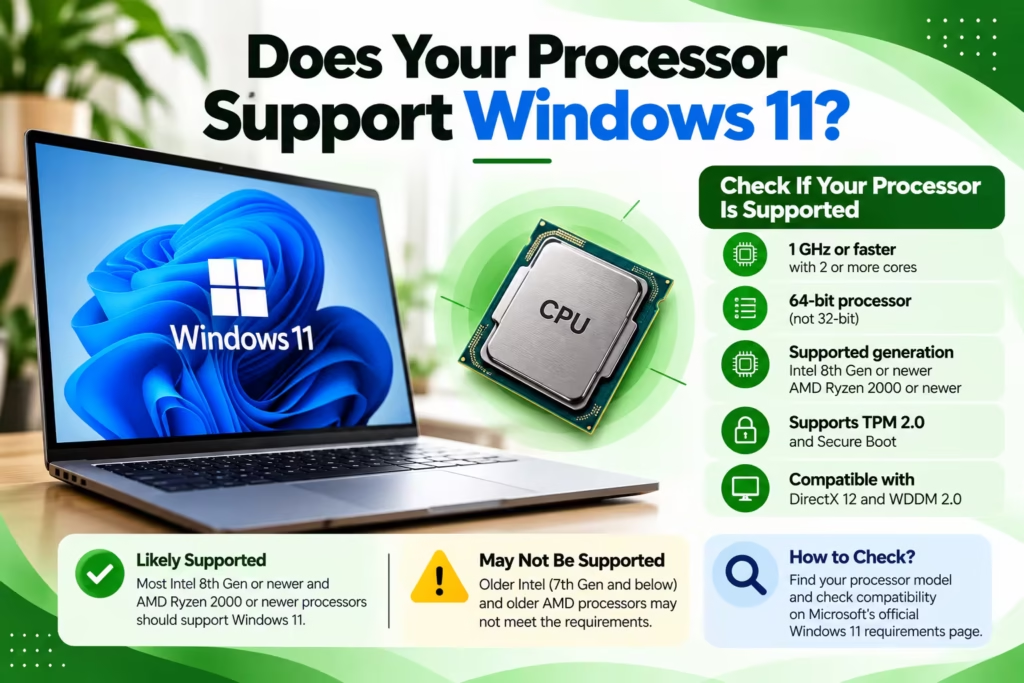
The processor is one of the biggest compatibility factors for an older laptop.
For example, some relatively powerful older laptops may still fail Microsoft’s official compatibility check because their processor generation is not supported. Meanwhile, a newer entry-level laptop may qualify because it uses a supported processor.
This is why you should not judge Windows 11 compatibility only by looking at processor speed.
A laptop with a 2.8 GHz processor is not automatically compatible. Processor generation and Microsoft’s supported CPU list also matter.
Can You Upgrade an Old Laptop for Windows 11?
Sometimes, you can improve an older laptop by upgrading its hardware. Adding more RAM or replacing a hard drive with an SSD can make a major difference to everyday performance.
However, these upgrades do not automatically make an unsupported laptop officially compatible with Windows 11.
For example, upgrading a laptop from 4 GB to 8 GB RAM can improve multitasking. Similarly, replacing an HDD with an SSD can make Windows start and applications load much faster.
Still, if the processor is unsupported or the laptop lacks required security features, those upgrades may not solve the compatibility issue.
What About Older Intel and AMD Laptops?
Older Intel Core and AMD Ryzen laptops can fall into different compatibility categories depending on their processor generation.
Some laptops may meet the basic hardware requirements but remain outside Microsoft’s official supported processor list. Others may have compatible processors but require TPM or Secure Boot to be enabled.
Therefore, check the complete configuration instead of relying only on the Intel Core i5, Core i7, or Ryzen name.
For business users, this check becomes even more important when upgrading several laptops at once.
Should You Upgrade or Replace Your Old Laptop?
The right choice depends on the laptop’s overall condition.
If your laptop has a supported processor, sufficient RAM, an SSD, TPM 2.0, and Secure Boot support, upgrading to Windows 11 can be a practical option.
On the other hand, replacing the laptop may make more sense if it has an old processor, slow HDD, limited RAM, poor battery life, or other hardware problems.
For example, an older business laptop with a good processor and upgrade options may still offer useful performance after an SSD and RAM upgrade. In contrast, a very old laptop with several hardware limitations may cost more to improve than its value justifies.
Windows 11 Compatibility Checklist
Before upgrading, check these points:
- Processor is officially supported
- 4 GB or more RAM is available
- At least 64 GB of storage is available
- TPM 2.0 is present and enabled
- Secure Boot is supported
- UEFI firmware is available
- Graphics support DirectX 12
- Display meets the minimum requirement
- Your important files have been backed up
A complete check is safer than upgrading based on only one specification.
Windows 11 System Requirements: Quick Comparison
If your laptop meets every major requirement, you can consider the upgrade with more confidence. If it fails because of RAM or storage, a hardware upgrade may help.
However, if the main problem is an unsupported processor, you should carefully consider whether upgrading is worthwhile.
For businesses, schools, and users managing multiple laptops, checking each system before deployment can also reduce compatibility issues and unexpected downtime.
Frequently Asked Questions
FAQ 1: What are the basic Windows 11 system requirements?
Windows 11 requires a compatible 64-bit processor with at least two cores, 4 GB RAM, 64 GB storage, UEFI firmware with Secure Boot capability, TPM 2.0, and compatible DirectX 12 graphics.
FAQ 2: Can 4 GB RAM run Windows 11?
Yes. 4 GB is the minimum RAM requirement. However, a laptop with 8 GB or more RAM will generally provide a better experience for everyday multitasking.
FAQ 3: Can an old laptop run Windows 11?
It depends on the hardware. Some older laptops meet the requirements, while others fail because of an unsupported processor, missing TPM 2.0, or lack of Secure Boot support.
FAQ 4: Does Windows 11 require TPM 2.0?
Yes. TPM 2.0 is one of the official Windows 11 hardware requirements.
FAQ 5: Can adding RAM make an old laptop compatible with Windows 11?
Adding RAM can help if the laptop has less than the required memory. However, it cannot fix an unsupported processor or missing TPM 2.0.
FAQ 6: Is an SSD required for Windows 11?
Microsoft’s minimum storage requirement is 64 GB. An SSD is not listed as a minimum requirement, but it can significantly improve startup times, application loading, and overall responsiveness.
Final Verdict
Checking the Windows 11 system requirements before upgrading your old laptop can save both time and money. Do not look only at RAM or storage. Processor support, TPM 2.0, Secure Boot, firmware, graphics, and available storage all matter.
If your laptop meets the requirements and remains in good condition, Windows 11 can extend its useful life. If it does not qualify, compare the cost of upgrades with the price of a newer laptop.
Ultimately, the best decision comes from looking at the complete hardware configuration rather than one specification. A proper compatibility check will help you decide whether to upgrade, upgrade the hardware, or replace the laptop.
