

Learning how to clear temporary files in Windows 11 can help free up storage space and keep your PC organized. Windows 11 creates temporary files while installing updates, running applications, browsing the web, and completing everyday tasks. Over time, these files can occupy significant storage space. Therefore, regularly removing unnecessary temporary files can be a simple way to maintain your system. This guide explains what temporary files are, why they accumulate, how to delete them safely, and which Windows 11 tools you can use.
How to Clear Temporary Files in Windows 11
Temporary files are created by Windows and applications for short-term use. They can include installation files, cached data, temporary internet files, update-related files, thumbnails, and other system data.
Usually, Windows manages many of these files automatically. However, some temporary data can remain on your storage after an application closes or an update finishes.
As a result, your computer may gradually lose available storage space.
Before deleting temporary files, close running applications and save your work. This reduces the chance of deleting files that an active application still needs.
Why Should You Delete Temporary Files?
Temporary files are not always harmful. In fact, many applications use them as part of normal operation.
However, unnecessary temporary data can accumulate over time.
Deleting unnecessary files can help you:
- Free up storage space
- Remove old installation data
- Clear application cache
- Reduce unnecessary disk usage
- Manage Windows update leftovers
- Keep your storage organized
However, deleting temporary files is not a substitute for upgrading hardware when your PC has insufficient storage.
If your system regularly runs out of space, consider checking your SSD storage capacity.
How to Clear Temporary Files in Windows 11 Using Settings
The easiest method is through the Windows 11 Settings application.
Step 1: Open Windows Settings
Click the Start button and select Settings.
Alternatively, press:
Windows + I
This opens the Windows Settings application.
Step 2: Open Storage
Select:
System → Storage
Windows will analyze your storage and display different categories of files and applications.
Step 3: Select Temporary Files
Click Temporary files.
Windows will show categories of data that can potentially be removed.
These may include:
- Temporary files
- Thumbnails
- Delivery Optimization Files
- DirectX Shader Cache
- Windows error reporting files
- Previous Windows installation files
- Temporary internet files
- Recycle Bin contents
The exact categories can vary depending on your system.
Step 4: Review the Files
Do not immediately select everything.
Review each category and consider whether you still need the files.
For example, deleting Recycle Bin contents permanently removes items already placed there.
Similarly, previous Windows installation files may be useful if you need to return to an earlier Windows installation.
Therefore, review the list carefully before continuing.
Step 5: Remove the Selected Files
After reviewing the categories, click Remove files.
Windows will delete the selected temporary data.
The process may take a few moments depending on how much data is stored.
How to Clear Temporary Files in Windows 11 With Disk Cleanup
Windows 11 also includes the classic Disk Cleanup utility.
Although newer Windows tools provide easier storage management, Disk Cleanup can still be useful for removing certain categories of unnecessary files.
Step 1: Search for Disk Cleanup
Open the Start menu and search for:
Disk Cleanup
Select the Disk Cleanup application from the results.
Step 2: Select the Drive
If prompted, select the drive you want to clean.
For most users, this is the C: drive.
Step 3: Select File Categories
Disk Cleanup will calculate the amount of space that can be recovered.
You may see categories such as:
- Temporary Internet Files
- Temporary Files
- Thumbnails
- Delivery Optimization Files
- Recycle Bin
- Windows error reporting files
- DirectX Shader Cache
Select the categories you want to remove.
Step 4: Confirm the Cleanup
Click OK and then confirm the deletion.
Windows will remove the selected files.
How to Clear Temporary Files in Windows 11 Using Run
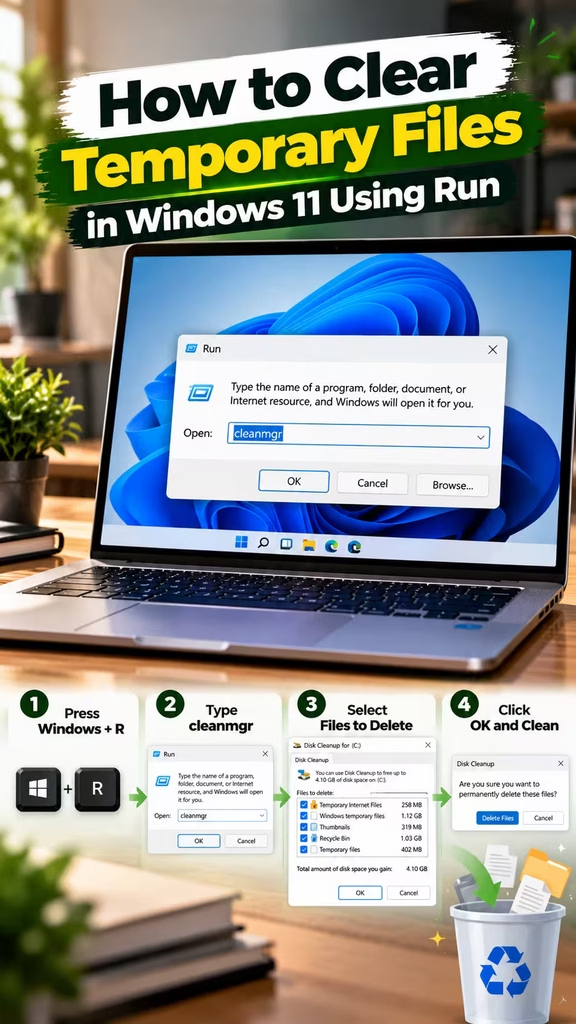
You can also manually open the Windows temporary folder.
This method is useful when you want to inspect temporary files directly.
Step 1: Open Run
Press:
Windows + R
A Run dialog box will appear.
Step 2: Enter the Temporary Folder Command
Type:
%temp%
Then press Enter.
Windows will open your user’s temporary files folder.
Step 3: Select Unnecessary Files
Press:
Ctrl + A
This selects the files and folders in the location.
Then press Delete.
Step 4: Skip Files Currently in Use
Windows may display a message saying that some files cannot be deleted because they are currently being used.
If that happens, select Skip.
Do not force-delete files that an active application needs.
How to Clear the Windows Temp Folder
Windows also has a system-level temporary folder.
Step 1: Open Run
Press:
Windows + R
Step 2: Enter the Command
Type:
C:\Windows\Temp
Then press Enter.
You may receive an administrator permission prompt.
Step 3: Delete Unnecessary Files
Select the files you want to remove.
You can use Ctrl + A to select the contents and then press Delete.
Again, some files may be locked because Windows or another application is using them.
Therefore, skip files that cannot be deleted.
How to Clear Temporary Files in Windows 11 With Storage Sense
Storage Sense can automate storage cleanup.
This is particularly useful if you frequently run low on storage.
Step 1: Open Storage Settings
Go to:
Settings → System → Storage
Step 2: Open Storage Sense
Select Storage Sense.
Step 3: Enable Storage Sense
Turn on Storage Sense if it is disabled.
Windows can then automatically manage certain unnecessary files.
You can also configure when Storage Sense should run and which types of content it should remove.
Therefore, it can reduce the need for manual cleanup.
Which Temporary Files Are Safe to Delete?
Most temporary files can be removed safely when Windows or the relevant application no longer needs them.
Common examples include:
- Temporary application files
- Temporary internet files
- Thumbnails
- Delivery Optimization files
- Windows error reporting data
- Certain cached files
However, you should review the categories before deleting them.
For example, deleting previous Windows installation files can remove your ability to roll back to an earlier Windows installation.
Similarly, clearing browser cache may cause websites to load certain content again.
Therefore, “safe to delete” depends partly on what you still need.
What Happens After You Delete Temporary Files?
After cleanup, you may notice more available storage.
Some applications may also recreate temporary files when they run again. This is normal.
For example, Windows and browsers regularly create cached and temporary data during normal operation.
Therefore, temporary files will gradually return even after a complete cleanup.
You do not need to remove every temporary file continuously.
Instead, perform cleanup when storage becomes limited or as part of regular PC maintenance.
Does Clearing Temporary Files Make Windows 11 Faster?
Clearing temporary files can help when unnecessary data is consuming significant storage space.
However, it does not automatically make every computer faster.
If your PC has sufficient free storage, deleting a small amount of temporary data may have little noticeable effect on performance.
Performance problems can instead result from:
- Insufficient RAM
- Slow storage
- Too many startup applications
- Background processes
- Outdated drivers
- Malware
- Thermal throttling
- Aging hardware
Therefore, temporary-file cleanup should be considered a maintenance step rather than a guaranteed performance upgrade.
If your computer needs additional memory, you can explore RAM options based on your system requirements.
How Often Should You Clear Temporary Files?
There is no fixed schedule that every Windows 11 user needs to follow.
Windows already performs some automatic cleanup.
However, you can manually check temporary files when:
- Your storage is almost full
- Windows updates require additional space
- Applications are generating large caches
- You notice unusually high storage usage
- You are preparing a PC for another user
For regular maintenance, Storage Sense can be more convenient than manually deleting files every week.
Should You Use Third-Party Cleaner Software?
Windows 11 already provides several built-in cleanup tools.
Therefore, third-party cleaning software is not necessary for basic temporary-file management.
Using built-in Windows tools also reduces the risk of accidentally removing important system or application data.
If you do use third-party software, research the application carefully and review exactly what it plans to delete.
For most users, Settings, Storage Sense, Disk Cleanup, and the Temp folders are sufficient.
Frequently Asked Questions
How to clear temporary files in Windows 11 quickly?
The quickest method is to open Settings → System → Storage → Temporary files, review the available categories, and select Remove files.
Is it safe to delete temporary files in Windows 11?
Generally, unnecessary temporary files can be deleted safely. However, review the categories first because some items, such as previous Windows installations or Recycle Bin contents, may have consequences when removed.
Can deleting temporary files improve PC performance?
It can help free storage space, but it does not guarantee a noticeable performance improvement. If performance remains poor, check RAM, storage, startup applications, drivers, and other system resources.
What happens if I delete everything in the Temp folder?
Windows may prevent certain files from being deleted because they are currently in use. Skip those files rather than forcing the deletion.
How often should I delete temporary files?
There is no mandatory schedule. You can clean them when storage becomes limited or use Storage Sense to automate supported cleanup tasks.
Does Windows 11 automatically delete temporary files?
Windows 11 can automatically manage certain temporary files through Storage Sense. However, the exact cleanup behavior depends on your configured settings and the type of temporary data.
Can I delete Windows Update temporary files?
Some Windows Update-related files can be removed through Windows storage cleanup tools. However, review the category carefully before deleting update-related data.
Will deleting temporary files delete my personal documents?
The standard temporary-file cleanup process is designed to remove temporary and cached data rather than your normal personal documents. Nevertheless, always review the selected categories before confirming deletion.
Final Verdict
Knowing how to clear temporary files in Windows 11 is a useful part of basic PC maintenance.
For most users, the easiest approach is Settings → System → Storage → Temporary files. You can also use Disk Cleanup, Storage Sense, or the %temp% folder when you need additional cleanup.
However, avoid deleting files blindly. Review each category first, especially when Windows shows previous installation files, Recycle Bin contents, or other data that you may still need.
If your PC continues to run out of space after cleanup, the problem may be limited storage capacity rather than temporary files. In that case, upgrading your SSD can provide a more permanent solution.
For compatible systems, you can also explore refurbished laptops and other IT hardware based on your budget and requirements.
Finally, if you are reinstalling or setting up Windows on a compatible system, you can explore Genuine Microsoft Windows Licenses for properly licensed Windows software.
Overall, regular storage management can help keep your Windows 11 PC organized and ensure that you have enough free space for applications, updates, and your personal files.
